
Syncthing: folder sync without the cloud
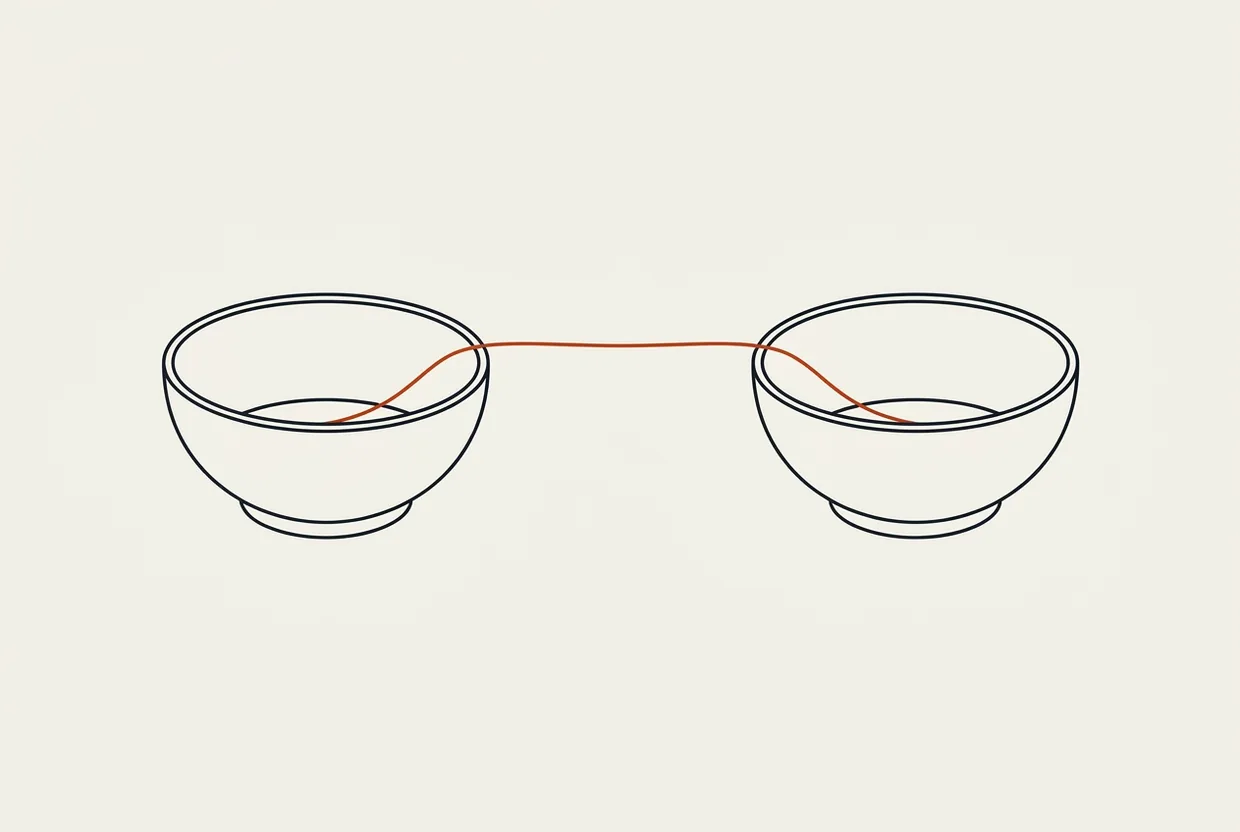
Syncthing keeps the same folders in two or more devices without sending them to a third-party service. You set it up once, give each device its own identity, choose which folders are shared with which peer, and then changes move from machine to machine with encryption in transit.
Two words first
In plain terms, it is a way to keep the same folder on several machines without handing it to someone else’s cloud. It is not storage in the cloud. It is coordination between your own devices.
For a beginner, that means you do not upload files just to download them again. For a professional, it means you keep control of the flow and do not depend on a central service to keep your work aligned everywhere.
What it does
Syncthing watches folders and mirrors their changes to the other machines you have connected. It does not rely on a single instant check. It also runs periodic scans, so it can rediscover a change if direct watching missed it. That is the first thing worth understanding: it does not wait for somebody else to tell it what changed. It looks for itself.
Each device keeps its own index. That is where it knows which files it has, which ones are missing, and which ones changed. It does not build one shared catalogue for everybody. It keeps a separate picture for each participant. That is how it knows what needs to move and where.
The comparison is not based on the timestamp you see in the folder. It is based on a hash. In other words, it checks the actual contents, not only the “looks newer” signal. That matters because a file can keep the same date and still be different, or it can look changed without actually being different. Syncthing reads the contents instead of trusting metadata theatre.
The flow is two-way. If you change something on the laptop, it goes to the desktop. If you change something on the desktop, it comes back to the laptop, as long as the folder is shared and both sides agreed to it. There is no default main side. Who sends and who receives depends on what changed.
If the same file changes on both sides before sync catches up, it does not delete one version to make room for the other. It creates a conflict file. It keeps the second copy too, so nothing is lost to convenience. That is the most useful part for anyone working across more than one machine: it does not pretend to know which side was right. It gives you both versions and lets you decide.
You can inspect and control it from its local control page, meaning the web interface the app itself runs, or from the shell through its subcommands. It is not a black box. You can see what is syncing, what is waiting, what broke, and which device is talking to which. The basic idea is simple: each machine knows what it has, what it lacks, and who to ask for the rest.
For documentation, the cleanest starting points are the project site, the docs, and the releases. If you hit a network oddity or a strange setup question, the forum is usually where the useful answers live.
What it does not do
It is not a backup tool with long-term history. If you delete something and that deletion syncs, Syncthing will not magically save you by itself. For that, you need a separate backup plan.
It is not a cloud space where files remain available even when your devices are off. If all machines are down, there is nobody left to move the change.
It is not a version control system. It is not a way to work on code with history, branches, and merges. If that is the level of control you need, you need another tool.
On a folder that two people edit at the same time, it needs discipline. It can keep both sets of changes, but the responsibility to avoid writing over the same thing still belongs to the humans.
It does not give you a public share link to hand one file to someone else like a file-hosting service would. It is a sync tool, not a distribution tool.
It does not solve every network situation on its own. If ports are closed or the connection is awkward outside your local network, you still need to handle the network settings.
How you set it up
You download the official package from the releases page. In the Windows package we tested, the zip was 14.3 MB and the executable after extraction was 34.8 MB. It does not need Node or Python. It is a single Go executable.
Open it, generate the profile, and keep the device identity somewhere visible. That is the first thing you will give the other machine. Without it, the other side does not know who is in front of it.
syncthing generate --home ./myst
syncthing device-id -H ./myst
Then start the service and open the local control page in the browser. That is where you see status, folders, and devices. It is the place where the whole setup begins, not ends.
syncthing serve --no-browser --home ./myst
Once the interface loads, add the second device with its own device ID. You do not guess. You do not send a generic link. You enter the exact identity of the other side.
Then go to the folder you want to share and give it the same folder ID on both sides. This is where many people waste time. It is not enough for the folder names to look the same. They must be the same inside Syncthing, with the same folder ID, or it will not understand that you mean the same content.
Next, choose which device gets which folder. It does not mean every device sees everything. You can give one folder to the laptop and a different one to the phone, or give the same folder to two devices and keep the rest closed. The model is per folder and per device, not one giant “everything for everyone”.
Finally, wait until the two sides see each other. If the network is local and simple, that happens quickly. If you are outside the local network, the hard part is networking. You need open ports or you need the connection to pass through Syncthing’s relay mechanism when direct contact is not possible. That is the most demanding part of setup, because the program itself will not solve it with one click.
If you want the official flow in its own words, the getting started docs are the right place to begin. For builds and packages, the release feed shows what you download each time. And if networking does not come up cleanly, the forum is more useful than guessing.
It is not a server for models
Syncthing is not an MCP server. It has no tools/list. It has no tool schema to load into a conversation. It is not declared to a helper as if it were a framework add-on.
You use it from the shell, with its subcommands. The five basic commands we ran are these:
syncthing --version
syncthing generate --home ./myst
syncthing device-id -H ./myst
syncthing serve --no-browser --home ./myst
syncthing cli -H ./myst config folders list
That means something simple. You pay no token tax inside a conversation, because there is no such conversation-level schema to load. But it also does not happen by itself. Someone has to run it.
Our hands-on test
Our test showed that the official Windows package is small and starts quickly. The local control endpoint answered 0.6 seconds after launch. That is a good sign for a tool you open and want to know immediately whether it is alive.
A file we wrote on one end reached the other in 8 seconds. The process held about 41 MB of memory while syncing. Hashing during the scan ran at about 320 MB/s.
We did not test sync between two different machines across a network. We did not test remote untrusted devices. Those remain the maker’s claims, not our own measurements.
Common jobs
If you want to keep the same folder on a laptop and a desktop, the use is straightforward. You put both into the same shared folder and let Syncthing bring changes from both sides. That works well when you start on one machine and continue on the other without remembering which copy is “the right one”. The right one is both, as long as you know which one wrote last.
If you want to sync a folder with a phone, the gain is that you carry the same files without leaning on a third-party service. The limit is practical: the device must be reachable and able to take the connection. In this kind of use, Syncthing is good for photos, notes, or documents you want everywhere, not for pretending it is a store that never needs attention.
If network use matters, you can limit how much it eats. That does not make it invisible, but it gives you control over how aggressively it searches or moves data. It is useful when you are on a constrained connection, or when you do not want sync traffic to crowd out your other work.
If you have folders that should not pass through, use exclusion patterns. That is where you put what you do not want in sync, such as build folders or dependency trees. This is one of the most practical parts of daily use, because it cuts useless noise and shrinks the load of the folder. There is no point syncing things another tool can regenerate.
If you want to stop it for a while, pause it and start it again when it suits you. That is useful when you are making a large change and do not want intermediate files to slip in, or when you want to free up the network for a bit. You do not need to delete it to stop it. You bring it down and then bring it back up.
What it costs
Syncthing is not something you declare to a model: it is not an MCP server, it has no tool schema loaded into every conversation, so its token tax is zero. You use it from the shell.
In money: free, under the MPL-2.0 licence. No subscription, no hidden ceiling.
In space: the Windows package we downloaded is 14.3 MB and the program after extraction is 34.8 MB. It carries no Node or Python runtime — it is a single Go executable.
In memory and time: in our test the process held about 41 MB of memory while syncing, answered its local control endpoint 0.6 seconds after start, and a file we authored travelled from one end to the other in 8 seconds, locally. Hashing during the scan ran at about 320 MB/s.
What this means in practice: you do not pay in money or tokens; you pay in devices kept awake, disk space and a little network care. Anything we did not measure is written as the maker's claim.
When it is worth it
It is worth it when you want sync that stays yours. It is worth it when you work on more than one machine and do not want to depend on a third-party service for your own content. It is also worth it when you care about knowing where each copy lives and who can see it.
It is also worth it when you want a tool that stays low in your routine. It does not force you to remember to upload something. It does not make you open every folder by hand every time. If your setup is steady and you want less friction between two devices, it does exactly what it promises.
It is not the right answer if you need long-term backup with history and rollback for every mistake. It is not the right answer if you want a public link for outside people. It is not the right answer either if what you need is live document collaboration, where many people type at once and expect central merging. It is the right answer when the goal is everyday two-way sync between your own devices.
End
Syncthing is an honest tool. It does not pretend to be everything. It does one thing well, and it does it without a central provider, without a subscription, and without hiding that it needs your devices to stay awake.
If you want folders to stay the same across two or more machines while keeping control in your own hands, this is one of the cleanest tools you can put into that flow. And if a setup detail gives you trouble, the most useful question is simple: do you want to talk to a few of your own devices, or build a whole network around them? For the first, this is a clean solution. For the second, you need to look deeper into networking and maintenance.
Sources:
Related
All in Automation
Fabric — 265 ready-made instructions for your model, from the command line
You have a model. It knows how to write, summarize, explain. And yet every time you start from a blank page: you…

ccusage — the counter that tells you how much your agent cost, without sending anything out
Every time you work with an agent, you spend something you do not see. You talk, you get an answer, and the…

worktrunk: Two jobs at once, without stepping on each other
worktrunk is a small command-line program that lets you keep the same code repository open in several folders at once, one folder…