
MarkItDown — the document becomes Markdown before the assistant reads it
MarkItDown from Microsoft takes files like PDF, Word, Excel, PowerPoint, HTML, CSV, JSON, images, audio, and links, and turns them into Markdown before an assistant sees them. That matters because assistants read text, not page layouts, and clean text is cheaper to process. The core runs locally, and the MCP server version exists too, but it is still alpha.
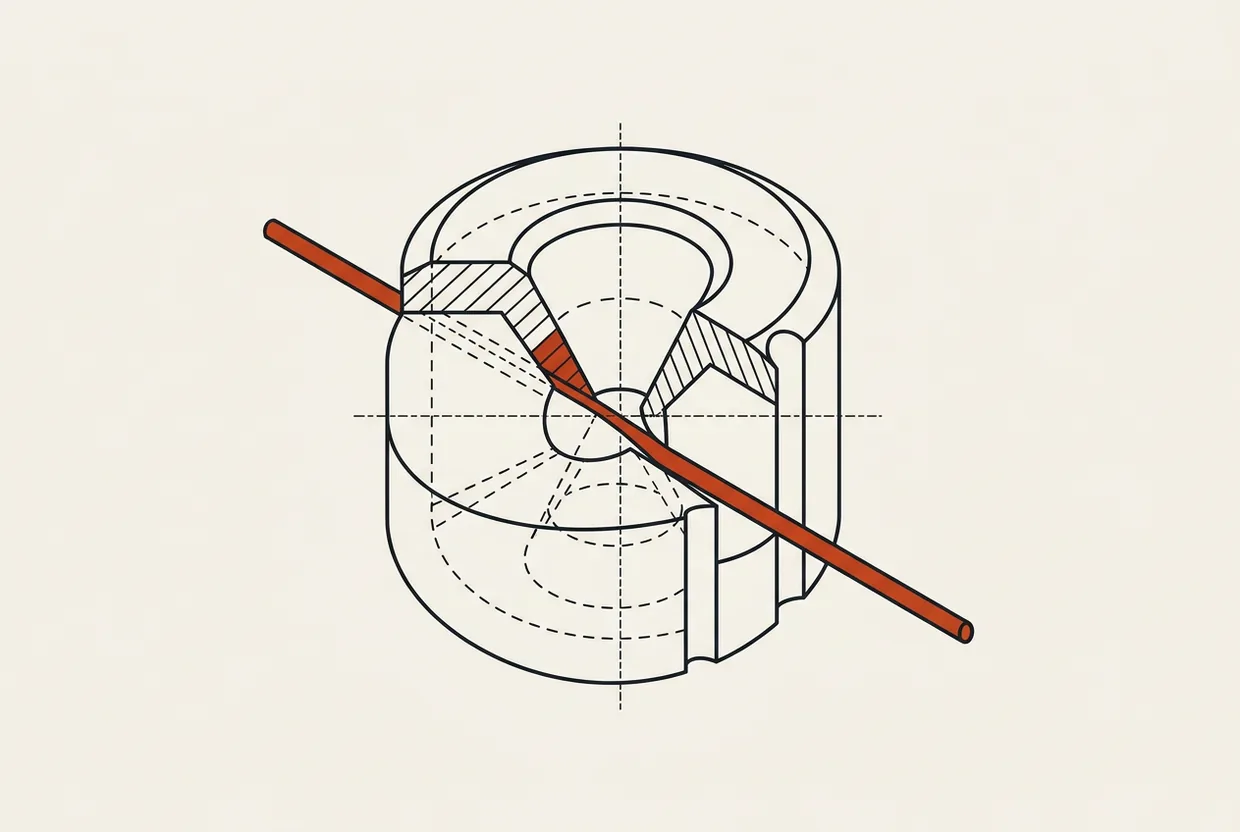
What it does
You have a PDF. You want your assistant to read it and answer you. You hand it over, and the first thing you learn is that the assistant does not see pages. It sees text, and it counts that text in chunks — tokens. A binary file full of layout instructions is, for a model, noise with a few small bits of meaning inside it.
MarkItDown does that work before the file reaches the model. It reads PDF, Word, Excel, PowerPoint, HTML, CSV, JSON, XML, images, audio files, and even a YouTube link, and returns Markdown: text with simple markup, with # for headings, ** for emphasis, and bars for tables. All models understand that form, with very low reading cost.
Two things stand out from the start. First: conversion happens locally, on your machine, with no key, no account, and nothing sent out. Second: the tool comes from Microsoft — the repository is https://github.com/microsoft/markitdown, with a MIT license, 190,809 stars, 14,193 forks, 737 open issues, and about 134 contributors. It opened on 13 November 2024 and was last updated on 4 October 2026, so it is alive and maintained.
Watch one point carefully, because that is where the cost hides: the same repository ships two packages. markitdown is the command-line program. markitdown-mcp is the server that gives the same work to an assistant inside the conversation. The second one is alpha, version 0.0.1a7, and I will say it again below with its full weight.
What it does not do
The trap you will run into is that it may look able to “read” images, but in practice it does not do OCR. If you have photos of paper or scanned PDFs, MarkItDown will not find the letters. It looks for text inside the file. Do not send it images expecting text back; you will need a separate OCR service, usually with a fee.
Do not confuse it with a reader or a summarizer. Its job stops at turning the file into Markdown. It does not interpret, it does not answer, and it does not correct meaning. We used it as a preprocessor before sending the text to the model. If you expect MarkItDown to draw conclusions, you will be disappointed.
Finally, watch the operating limits: the MCP server is alpha and may change or break in upgrades. The tool struggles with pages protected by robots and with files that have been damaged. It also does not always preserve complex tables, forms, or equations with perfect accuracy. If your file is already clean text, there is no point running it.
Who it is for
For anyone who gives documents to their assistant. An invoice, a declaration, an article, an Excel sheet, a downloaded HTML page, a video you want summarized. If you do that even once a week, the tool earns its place.
You do not need to know programming. The basic use is one word and one file name, and the result is text you can read with your eyes too.
It does not make sense when your files are already plain text — there is nothing to clean. And it does not solve scanned pages, meaning photos of paper: there the program finds no letters, because it does not look with an image but with text. I explain the reason and the fix at the end.
Installation
Installation happens once, from any folder, with uv:
uv tool install --python 3.13 'markitdown[all]'
Check that it installed correctly:
markitdown --version
On our side it returned 0.1.8. That version is from 21 September 2026, its wheel is 89,737 bytes, and it wants Python from 3.10 to 3.15 (PyPI).
The [all] flag is not decoration. It pulls in all optional pieces, so all file formats open. Without it you get a narrower core. The tradeoff is disk space, and I measured that — you will see it in the cost section.
The point of the article is to install your tool. Installing the MCP server is a different thing and happens inside each assistant, in the next section.
Use in each LLM
From the command line, the path is the simplest: write markitdown and then the file path, and the Markdown prints to the screen. You do not need to remember that from here — the real runs are in the Test section, with numbers.
For assistants, the route is MCP. MCP means model context protocol; in simple terms, a standard way to give an assistant external tools so it can call them on its own during the conversation. The MarkItDown server exposes one and only one tool, convert_to_markdown. You give it a file, and it returns Markdown.
One thing before everything else: the server runs through uvx, which downloads the packages the first time and keeps them after that. The first cold run is slow — see the numbers in Test before you assume it is stuck.
Claude Code
One line, from the project folder:
claude mcp add markitdown -- uvx markitdown-mcp
That is the command we used. It adds the server and makes it available in the conversation. After that, you ask the assistant to read a file and convert_to_markdown takes over.
Codex CLI
In Codex, the setup is not JSON. It is written in a TOML file named config.toml, inside the .codex folder of your profile:
[mcp_servers.markitdown]
command = "uvx"
args = ["markitdown-mcp"]
We did not run this, and I will say that clearly: we do not have Codex CLI on this machine. The shape comes from Codex’s documented file layout, not from measurement.
Cursor
In Cursor, the setup goes into a file named mcp.json. In the .cursor folder of the project for one project only, or in the user folder for all of them:
{
  "mcpServers": {
    "markitdown": {
      "command": "uvx",
      "args": ["markitdown-mcp"]
    }
  }
}
Same shape as Claude Code, same command. And this was not run inside a real Cursor either — we do not have it here. It is the standard place for the setting in that client.
The HTTP route
If you want the server to listen on an address instead of speaking through standard input and output:
uvx markitdown-mcp --http --host 127.0.0.1 --port 3001
You then declare it to clients as an HTTP server at that address. My own estimate is how exactly each client wants the address written; what we measured is that the server starts and responds.
Where it wins, where it loses
It wins at the first problem every assistant has: how to read a document. It solves that with one command, free, locally, without a key.
It wins because it replaces ten libraries with one tool. For each file type there is a separate solution out there — one for PDF, one for spreadsheets, one for presentations. Here one command covers them all.
And it wins because the work happens before the content reaches the model. The conversation window does not pay for layout markup, it pays for text. The 1,685 tokens for our PDF are the proof.
It loses because the MCP path is alpha — 0.0.1a7, from September 2026 — while the core itself is mature. The a in the middle of the version means the thing is pre-release and can move under your feet.
It loses at 140 to 323 MB on disk, depending on the path you choose.
It loses because it does not read images or scanned PDFs without a Microsoft service that charges money.
And it loses because it gets stuck at both ends: on websites that protect themselves from robots, and on files that have been damaged. I show those two cases in the next tests.
Now the difference from what we have covered in this column. Context7 brings library documentation. Basic Memory keeps what you tell it. One gives you other people’s ready-made knowledge, the other stores your own — neither of them lays out your own PDF so an assistant can read it. That is where MarkItDown works on its own, and it is the fourth entry in the knowledge column.
Test
What follows was run on Windows, with uv, without keys, at zero cost. Three tests and four traps.
Installation was done with the command from the installation section, using Python 3.13. Check: markitdown –version gave 0.1.8. It asked for nothing else.
Test one, HTML. We made our own file with a heading, one bold word, and a table, and ran it:
markitdown sample.html
The output was correct Markdown: heading with #, the bold word with **, the table with bars. Time: 1.9 seconds.
Test two, a 159,216-byte PDF:
markitdown C:/Users/user/Downloads/declaration-1.pdf
2.7 seconds, 1,905 characters, 1,685 tokens. That is the whole meaning of the tool in one number: the binary file with tens of thousands of bytes never entered the conversation. The text did, and it was small.
Test three, the MCP path. The block you give each client is the same:
{"mcpServers": {"markitdown": {"command": "uvx", "args": ["markitdown-mcp"]}}}
What we measured in the handshake. The first cold time took 16.8 seconds for initialize, because dependencies were downloading. The same call after that: 0.1 seconds. The tool list has one and only one tool, convert_to_markdown, and calling it with a file://-style address returned correct Markdown.
The traps
This is the useful part, and we measured it the hard way.
First: the web is not always open. We tried giving it an address instead of a file:
markitdown https://en.wikipedia.org/wiki/Markdown
It fails with “requests.exceptions.HTTPError: 403 Client Error: Forbidden”. Wikipedia protects its pages from the default user agent that the download tool declares. That is not a MarkItDown bug. It is a wall the site raises against robots. For pages, you need a different tool, not stubbornness.
Second: a damaged file stops it.
A PDF with a structural problem crashes with “FileConversionException … PDFSyntaxError with message: No /Root object!”. It does not skip the file and keep going. It stops, and leaves you to figure out which of your ten files caused the trouble.
Third: the MCP server version comes back empty. In the handshake, the field that declares the server version arrives blank. Do not rely on that field to know what is running; check the package version instead.
Fourth: the image does not go through character recognition. We tested a 48,597-byte PNG. The result was one character, one token. In other words, the tool read nothing from the image — because it does not do visual recognition by itself. I say this again in the cost section, because it has a charge attached too.
The limits of the test, to stay exact. We did not run the Codex CLI and Cursor clients end to end, because we do not have them here; the MCP path was tested in the handshake with the server, not inside each program. We did not test the HTTP route with a real client. And we did not touch the Azure path at all, because it needs a key — we do not have one.
What it costs
The price of the tool is zero. MIT license, open source, no key, no account, no sign-in for the basic job.
And here is the bill that most articles do not mention. Installing with [all] also pulls in the connection to Microsoft’s Azure Document Intelligence (README). That is what reads scanned PDFs correctly and extracts text from images. It is a service with per-page charges, which means it needs a key and an account. The local route is free, but it needs files that already contain text. We did not buy anything, so I do not know the prices — but I do know the limit is not set by the tool, it is set by your wallet.
Disk space, from our own measurements, not guesses. The base takes 140 MB. With all extras, 306 MB. And the environment that uvx markitdown-mcp sets up on its own reaches 323 MB. Practically: if you want the plain command-line program, you take only markitdown and save about half.
The cost in the conversation window is one entry in the tool list, and nothing else. It does not burn tokens until you call it, and when you do call it, you pay for the Markdown it returns. The 159,216-byte PDF cost 1,685 tokens — easy to fit in any conversation window, even tight ones.
And the time, which is the hidden cost of the first few minutes. The first cold run through uvx took 25.1 seconds, of which 24 went to downloading 53 packages. With a warm cache, the same job drops to 2 to 3 seconds. In other words: one round of patience, then lightning.
The public numbers, with their source. markitdown has 14,569,559 downloads in the last month, 3,805,568 in the last week, and 383,935 yesterday (pypistats). markitdown-mcp has 90,012 in the month, 19,036 in the week, and 2,272 yesterday (pypistats). The gap between the two numbers is the most interesting thing: people trust the core far more than the server.
And the release rhythm of the core: 0.1.8 on 21 September, 0.1.7 on 29 July, 0.1.6 on 26 May 2026. Steady, not dense — two months between releases. It is not a tool that changes every night, and for something that sits in your work flow, that is good news.
Verdict
MarkItDown answers the most common blocker an assistant meets: the document. It does not do it with magic, it does it with one command that works locally, for free, without a key and without sending anything out.
Its strong point is the ratio of cost to benefit. 2.7 seconds to turn a 159,216-byte PDF into 1,685 tokens instead of a full binary file, and one single entry in the conversation tool list. There is no other place in the work flow with a higher return.
The objections are specific and you already know them from above. The MCP path is alpha, 0.0.1a7. The 140 to 323 MB on disk. And the image case: one character, one token in a 48,597-byte PNG — without Azure, images and scanned PDFs do not get read.
If you give documents to your assistant, install it today. Take markitdown with all extras, try it on one of your own PDFs, and leave the MCP server for later — it is the route that has not matured yet, and you can wait for it.
Score: 8.9/10.
See also
Related, from the same category:
- openwiki: your repository wiki that writes and maintains itself
- graphify: the knowledge graph that answers about your repository without rereading it
- Docling: your documents in clean Markdown, with the structure kept in place
Sources:
https://github.com/microsoft/markitdown
https://pypi.org/project/markitdown/
https://pypi.org/project/markitdown-mcp/
https://pypistats.org/packages/markitdown
Εγκατάσταση
2 ΒΗΜΑΤΑ- uv tool install --python 3.13 'markitdown[all]'
- uvx markitdown-mcp --http --host 127.0.0.1 --port 3001
Related
All in Knowledge & Memory
DuckDB: SQL analysis inside your app, without a server
DuckDB is an analytical database that lives inside your application and works without a separate server. It speaks SQL, reads CSV, JSON,…

pgcli: the light Postgres shell that guesses what you want to type
pgcli is a small terminal program that helps you talk to a Postgres database, which is a free and widely used place…

openwiki: the repository wiki that writes and maintains itself
openwiki is a command-line tool from langchain-ai with an interactive terminal surface. It reads your repository and builds a Markdown wiki, then…